Kaspersky Antivirus for android phones

Kaspersky Antivirus

Description
*****
It's awesome! It is the best free antivirus I have ever used. Especially it's cloud scan is
extremely effective! I must say one may download this.
*****
Excellent. Thank you for a great app!
... and thousands of other 5-star user reviews.

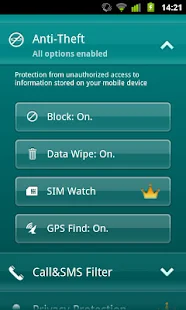
Kaspersky Mobile Security Lite delivers essential anti-theft defense,
allowing you to block, wipe or find your missing phone. You can also easily filter unwanted
SMS texts and calls. Plus,
Anti-Virus Lite with cloud-based security scanner alerts you to potentially malicious apps
before they can harm your phone.

ANTI-VIRUS LITE: Alerts you to potentially malicious apps before they can harm your phone
ANTI-THEFT PROTECTION: Remotely block, wipe or find your phone if it is lost or stolen
CALL & SMS FILTER: Blocks unwanted calls and SMS texts
SUPPORTED LANGUAGES
Danish, Dutch, English, Finnish, French, German, Italian, 
Korean, Norwegian, Polish, Portuguese (Brazil), Russian, 
Spanish, Swedish
SYSTEM REQUIREMENTS
Android 1.6 – 2.3
UPGRADE TO ADVANCED VERSION!
Kaspersky Mobile Security offers advanced protection for your smartphone:
• Anti-Theft Protection – Remotely block, clean or find your missing phone even if your
 SIM card has been replaced
• Anti-Virus Protection – The latest technologies prevent viruses and spam from infecting
your phone while you’re surfing the Internet. Plus, automatic, cloud-based scanning of
downloaded apps
• Call & SMS Filter: Blocks unwanted calls and SMS texts
• Privacy Protection – Hides designated contacts, and controls what others can see
and access on your phone
*www.av-test.org/fileadmin/pdf/avtest_2012-02_android_anti-malware_report_english.pdf
==================================================================================
Google Playstore Download
4Shared Download

Ubuntu Lock sceen for all phones

imgimgimg

Ubuntu lock screen

The Ubuntu lock screen is the first Ubuntu Touch OS lock screen for Android. Its easy to use and it have the elegance and innovate style from Ubuntu Touch OS. It also have many settings that can be changed, from animations to colors. Although its still on beta stages it stable enough to use it every day!
Its the perfect app for those who like Ubuntu and/or like to try new and unique apps.
It include features like:
All notifications can be shown, just enable the Accessibility Service and set it up.
Password security (More unique security types to come)
Animations
Locking timer
Easy to use music buttons
=================================================================================
Google Playstore Download
4Shared Download

Instructions

Here are the instruction to flash roms.

Roms in which we need to create sd-ext partition 

  1. All the Roms with hTC Sense higher than 4.0
  2. In some MUI based roms
    Note:
           If you don't know how to create sd-ext partition then Follow this link

Instruction 

Create sd-ext partition then follow bellow process.
Step 1:
• Download the rom you want to install

Step 2:
• Now, Connect your HTC Explorer by using a proper data cable to your PC.

Step 3:
• Copy the downloaded files on your device’s SD card.

Note:
      Do not extract any files.

Step 4:
• Now switch off your device or remove battery and insert.

Step 5:
• Press Volume down key and power button together for 10 sec then bootloader mode menu is displayed. Select recovery option on the menu.

Note:
       Use volume keys to navigate and Power button to confirm choice.


                           For CWM recovery only


Step 1:
• After rebooting in ClockWorkMode Recovery you need to select wipe data /factory reset.

Step 2 :
• Select wipe dalvik cache and wipe cache partition one by one.

Step 3 :
Mount sd-ext from recovery menu ( if you have problem i recommend you to install TWRP recovery. See requirements and Follow the link to install TWRP recovery & Follow this link to Create sd-ext partition)

Step 4:
• Select install zip from SD card from the recovery menu.

Step 5 :
• And select option chooses zip from sdcard.

Step 6 :
• After downloaded files is navigated press next.

Step 7 :
• The installation process starts. You are not required to do anything.

Step 9:
• Finally, Select +++Go Back++++ and then Reboot System now option.

Step 10 :
• Your device will reboot. It takes a few minutes for setting up OS environment wait for 15-30 minute until device start completely.
Congratulation! Now your HTC Explorer runs on Custom rom.

Note: 

If you get stuck on boot animation install latest TWRP recovery and procced. From here


                          For TWRP recovery/ other recovery


Step 1:
• After rebooting in TWRP / team win Recovery you need to select wipe data /factory reset from wipe .

Step 2 :
• Select wipe dalvik cache and wipe cache partition one by one from wipe. Go back to home

Step 3 :
• Before install go to mount from the menu and select mount sd-ext.Select install from the recovery menu.

Step 4 :
• And select downloaded zip from sdcard.

Step 5 :
• After downloaded files is navigated press next.

Step 6 :
• The installation process starts. You are not required to do anything.

Step 7:
• Finally, Select reboot and then System option to reboot into system wait for 15- 25 min. 

            Roms in which we don't need to create sd-ext partition 

  1. All the except htc sense 4.0 and above including MUI roms can be Flashed by the bellow process
Instruction 

Step 1:
• Download the rom you want to install

Step 2:
• Now, Connect your HTC Explorer by using a proper data cable to your PC.

Step 3:
• Copy the downloaded files on your device’s SD card.

Note:
      Do not extract any files.

Step 4:
• Now switch off your device or remove battery and insert.

Step 5:
• Press Volume down key and power button together for 10 sec then bootloader mode menu is displayed. Select recovery option on the menu.

Note:
       Use volume keys to navigate and Power button to confirm choice.

       For CWM recovery only


Step 1:
• After rebooting in ClockWorkMode Recovery you need to select wipe data /factory reset.

Step 2:
• Select wipe dalvik cache and wipe cache partition one by one Not sd card.

Step 3:
• Select install zip from SD card from the recovery menu.

Step 4 :
• And select option chooses zip from sdcard.

Step 5 :
• After downloaded files is navigated press next.

Step 6:
• The installation process starts. You are not required to do anything.

Step 7:
• Finally, Select +++Go Back++++ and then Reboot System now option.

Step 8 :
• Your device will reboot. It takes a few minutes for setting up OS environment wait for 15-30 minute until device start completely.
Congratulation! Now your HTC Explorer runs on Custom rom.

Note:
If you need to install Google apps follow same process from step 3

                               For TWRP recovery/ other recovery


Step 1:
• After rebooting in TWRP / team win Recovery you need to select wipe data /factory reset from wipe .

Step 2 :
• Select wipe dalvik cache and wipe cache partition one by one from wipe not sd card. Go back to home

Step 3:
• And select downloaded zip from sdcard.

Step 4 :
• After downloaded files is navigated press next.

Step 5 :
• The installation process starts. You are not required to do anything.

Step 6:
• Finally, Select reboot and then System option to reboot into system wait for 15- 25 min

Note:
 if you need to install Google apps follow same process from step 3

Roms for hTC Explorer

Hi friends here you can get all the roms available for hTC Explorer.
You can follow the steps according to the type of rom you wish to install.


Roms with hTC Sense

  1. hTC Explorer List of stock Roms.
    Download from Here.
  2. hTC Sense 4.0 Build 8.
    Download it From here.
  3. hTC Sense 5 EX .
    Download it From here.
  4. hTC bullet FX android 4.0.3
    Download it From here.
  5. Fly Rom hTC Sense 4.0
    Download from Here
  6. NExtGen hTC rom
    Download it From here
  7. Xenon Systems for htc explorer v3.02
    Download it From here
  8.  Galaxy S3 feel™OS BUILD #4
    Download it From here

Roms without Sense

  1. Jelly bean Xperia Fussion
    Download it From here
  2. ParanoidAndroid 3.00 for the HTC Explorer
    Download it From here
  3. MiniProvisionMOD
    Download it From here
  4. MiniCM10-4.1.0 V4
    Download it From here
  5. JaggyRom version 4.1
    Download it From here
  6. MIUI V4.1 For Pico 3.1.11
    Download it From here
  7. Cyanogenmod 10 for HTC pico
    Download it From here
  8. Unofficial CyanogenMod 9.1 Build #9
    Download it From here
  9. Holo Sandwitch Version 1.2
    Download it From here
  10. AOKP MILESTONE #6 Build #5
    Download it From here
  11. Slim Cyan 9
    Download it From here
  12. Xperia-ICS Build #13
    Download it From here
  13. MIUI v5 3.7.5
    Download it From here
  14. ICS Freedom with LG3 UI v2
    Download it From here
  15. Unofficial CyanogenMod 10 Alpha #4
    Download it From here
  16. Xperialized MiUi v4 Build # 3
    Download it From here

Instruction for flashing are provided in this link.

Here are some extra links for roms and customization related with hTC Pico. Post by hrkh83

Credit goes to hrkh83. A special thank to him and XDA forum as well.

FAQ

Frequently Asked Questions and Must Have Read:

ROOT

Rooting your HTC Explorer (Pico):
CUSTOM RECOVERIES

Custom Recoveries:
SENSE ROMS
(ROMS are organized according to most recent updates)

Jelly Bean 4.1.x - 4.2.x - 4.3.x

Ice Cream Sandwich 4.0.x

Gingerbread 2.3.x
AOSP ROMS
(ROMS are organized according to most recent updates)

Jelly Bean 4.4[LIST][*][13.11.28][JB-4.3.1] CyanogenMod 11- Beta1

Jelly Bean 4.3.x

Jelly Bean 4.2.x

Jelly Bean 4.1.x

Ice Cream Sandwich 4.0.x

Gingerbread 2.3.x
STOCK ROMS

(IMPORTANT READ BEFORE FLASHING STOCK ROMS!this)

Stock Roms

FIREFOX OS 
Firefox OS
Dualboot ROMs
[*][17.08.13][Project][Kernel][Rom][WIP]Dual Boot HTC Explorer [Dualboot App Added]